
Loading
Displays
Panel type, resolution, refresh rate and GPU pairing — with honest trade-offs between IPS, VA, OLED and Mini-LED, plus Amazon UK search starting points.
The buying rule
Match the panel to the work, then match the refresh rate and connectivity to the computer driving it.
Panel names hide meaningful differences in brightness, text clarity, HDR behaviour and warranty. Verify the exact model suffix — two monitors with the same marketing family can use different panels. Cards search Amazon UK; they are not live price quotes.
Amazon UK search links are provided for current availability; no affiliate programme is currently configured, and no live price is claimed here. Affiliate disclosure.
Panel types
Marketing names hide different compromises. Start with the work you repeat most often.
Scroll the table sideways to see every column.
| Panel | Contrast | Motion | Text | Best for | Watch out |
|---|---|---|---|---|---|
| IPS | Moderate — blacks look grey in dark rooms | Good on modern fast-IPS variants | Strong for documents and mixed desks | Work + gaming balance, multi-monitor setups | IPS glow on dark content; HDR often marketing-heavy on budget panels |
| VA | High — deeper blacks than IPS on LCD | Can show black smear in dark scenes | Weaker than IPS for small text at some angles | Cinematic gaming, single-monitor immersion | Mixed work + competitive gaming can feel compromised |
| OLED | Near-infinite — self-emissive pixels | Excellent pixel response | Good with tuning; static UI needs care | High-contrast gaming and media | Burn-in policy, brightness in bright rooms, desktop static elements |
| Mini-LED | High local dimming on LCD backlights | Depends on underlying LCD panel | Usually IPS-class; haloing in high-contrast UI | HDR gaming without OLED burn-in anxiety | Zone count and firmware matter more than the badge |
Resolution & refresh
A monitor cannot outrun the card driving it.
IPS and IPS-like variants remain the default for mixed work and gaming: wide viewing angles, predictable text rendering, and moderate HDR. VA panels trade viewing angles for deeper contrast in dark scenes — useful for cinematic gaming but text can look less crisp. OLED delivers near-infinite contrast and fast pixel response, but static desktop elements and peak brightness need deliberate care. Mini-LED backlights improve HDR headroom on LCD panels without OLED burn-in risk, at the cost of complexity and often heavier wallets.
1080p at 240Hz still makes sense for competitive esports when the GPU can sustain high frame rates. 1440p is the practical sweet spot for modern gaming GPUs: sharper than 1080p without the 4K tax. 4K at high refresh demands a top-tier card — verify your target games, not just the monitor spec sheet. Ultrawide (21:9 or 32:9) changes productivity and immersion more than adding vertical pixels; confirm game support and window management before buying.
DisplayPort 1.4 or 2.1 is the reliable path for high refresh on PC. HDMI 2.1 matters for consoles and some laptops. USB-C with DisplayPort Alt Mode can replace a dock for MacBook-first desks — check power delivery and whether the port is full bandwidth. G-Sync Compatible and FreeSync Premium reduce tearing when frame rates dip; verify the monitor supports your GPU vendor’s implementation. Measure desk depth: a 32″ panel at 1440p can feel uncomfortably close unless you sit farther back or use a deeper stand.
PC build pairings
Start from the GPU you have or plan to buy — then pick resolution and refresh.
Entry 1080p build
24–27″ 1080p, 144–240Hz IPS
Match the panel to what an RTX 5060 class card can sustain — high refresh at 1080p beats overspec’d 4K.
Balanced 1440p build
27″ 1440p, 144–170Hz IPS or fast VA
The default sweet spot for mid-tier GPUs — sharp enough for RPGs, fast enough for shooters.
High-end 1440p / 4K build
27–32″ 1440p 240Hz or 32″ 4K 144Hz
Verify DisplayPort bandwidth and GPU headroom before paying for 4K high refresh.
No-compromise 4K build
32″ 4K OLED or Mini-LED, 144Hz+
Top-tier cards can drive 4K high refresh — the monitor should expose full bandwidth, not HDMI shortcuts.
Starting points
Search links — verify the exact model suffix, stand, and ports on the retailer page.
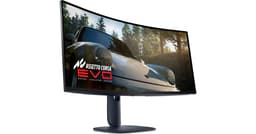
Dell · QD-OLED · 34″ · 3440×1440 · 240Hz
An ultrawide QD-OLED direction for immersive gaming and wide creative timelines.
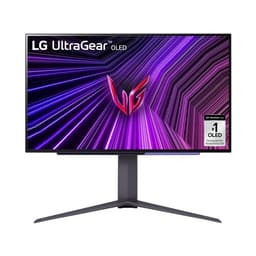
LG · WOLED · 27″ · 2560×1440 · 240Hz
A fast OLED desktop display for high-refresh gaming in a manageable footprint.
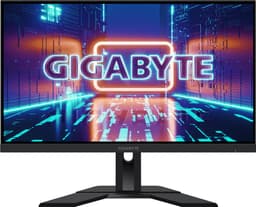
Gigabyte · IPS · 27″ · 2560×1440 · 170Hz
A practical 27″ QHD IPS class option for mixed work and gaming.
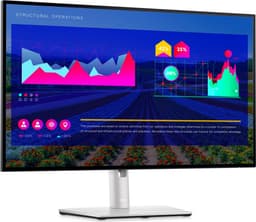
Dell · IPS · 27″ · 2560×1440 · 60Hz
A work-first display line focused on text, ergonomics and office connectivity.
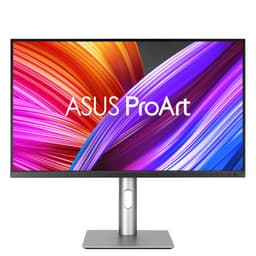
ASUS · IPS · 27″ · 3840×2160 · 60Hz
A colour-calibrated IPS direction for creators who need predictable still-image work.
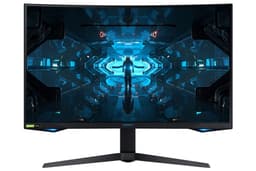
Samsung · VA · 32″ · 2560×1440 · 240Hz
A curved 32″ 1440p VA gaming monitor when contrast and immersion beat text-first clarity.
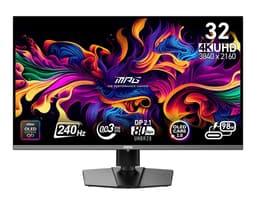
MSI · QD-OLED · 32″ · 3840×2160 · 240Hz
The value default of the 32″ 4K OLED class: per-pixel illumination for the no-compromise 4K build, 240Hz for games.
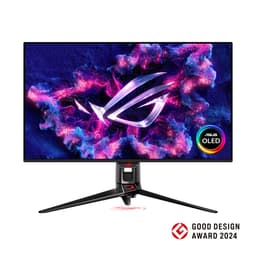
ASUS · QD-OLED · 32″ · 3840×2160 · 240Hz
The most-searched 32″ 4K QD-OLED, now discounted well below launch — the mainstream premium pick of the class.
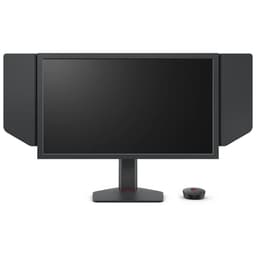
BenQ · Fast TN · 24.1″ · 1920×1080 · 540Hz
The flagship 1080p esports panel: 540Hz with DyAC2 motion clarity — the pairing target for the entry 1080p build pushed to its limit.
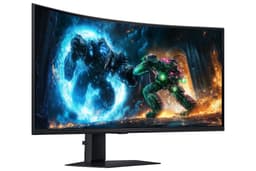
Samsung · VA · 40″ · 5120×2160 · 180Hz
A distinct 40″ 21:9 WUHD Odyssey G7 (LS40FG756EUXXU family) — not the 32″ 16:9 G7. Ultrawide immersion when desk depth and GPU fill rate allow.
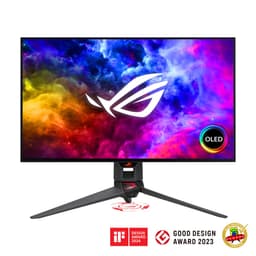
ASUS · WOLED · 27″ · 2560×1440 · 240Hz
A premium 27″ WOLED gaming panel when motion clarity and contrast matter most.
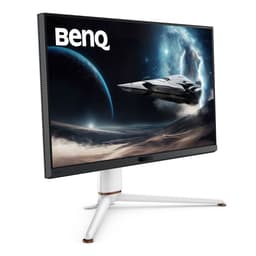
BenQ · Mini-LED · 32″ · 3840×2160 · 144Hz
A 4K Mini-LED direction when HDR headroom matters but OLED desktop care does not.
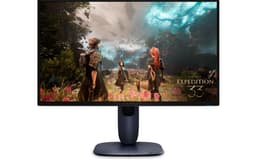
Dell · QD-OLED · 27″ · 3840×2160 · 240Hz
A 27″ 4K QD-OLED for high-refresh 4K gaming and sharp creative desktop work.
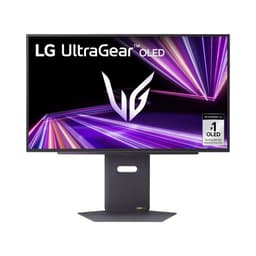
LG · WOLED · 27″ · 2560×1440 · 480Hz
A 480Hz WOLED esports panel — among the fastest OLED monitors, pairing extreme refresh with OLED contrast (TN esports panels such as the 540Hz ZOWIE XL2586X go higher).
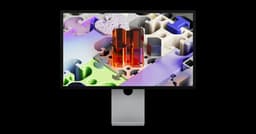
Apple · Mini-LED · 27″ · 5120×2880 · 120Hz
Apple's 27″ 5K mini-LED display with 2,304 dimming zones, 1,000 nits SDR / 2,000 nits peak HDR, 47–120Hz Adaptive Sync and two Thunderbolt 5 ports.
Product notes last reviewed September 26, 2026. These are editorial starting points, not live prices or stock guarantees.
Pairings
Displays rarely fail in isolation — these are the constraints that usually decide whether a panel is the right buy.
Match a GPU first
A monitor cannot outrun the card driving it — check VRAM and bandwidth for your target resolution.
Laptop as primary display driver
USB-C docks and bandwidth limits often cap refresh or resolution — verify the laptop’s external display spec.
Build around the display
A 4K 144Hz target changes the sensible GPU tier — align the build list with the monitor goal.
Buying a prebuilt instead
OEM bundles often pair a weak GPU with an overspecced monitor — check the card, not the marketing photo.
Common questions
Answered from the verified figures on this page rather than general guidance.
Keep exploring
A monitor only works if the rest of the system can feed it — GPU, build, or prebuilt.